Batch No. Tracking
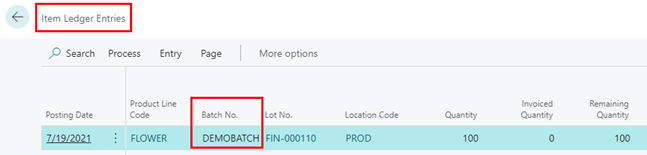
Silver Leaf CBC allows for batch tracking on Released Production Orders. This allows you to add a Batch Number to Released Production Orders which can be added to the Item tracking Lines in the Production Journal. After posting the order, the Batch No. can be viewed in Item Ledger Entries.
How to: Add Batch No. to the Page
If you do not see it on the page, then the Batch No. field may need to be added using the Personalize function in Business Central.
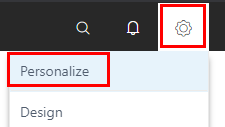
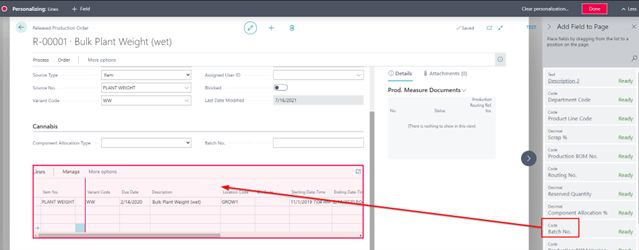
Click the Cog icon at the top right of the page, next to the Bell icon, and select Personalize.
Click the More dropdown button in the grey Personalizing Bar.

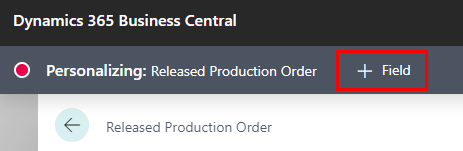
Click + Field in the grey Personalizing Bar.
Drag and Drop the Batch No. field in the Add Field to Page Pane to the Cannabis Tab section of the page, to the right of Component Allocation Type.
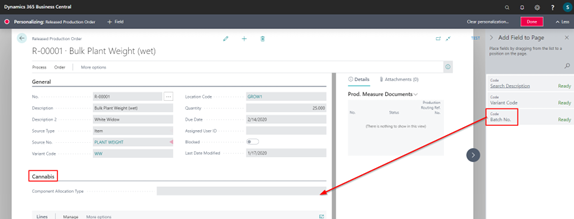
Next click inside one of the lines in the Lines FastTab to highlight the Lines FastTab and drag and drop the Batch No. field into the Lines FastTab.
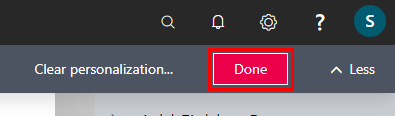
Click Done.
How to: Assign a Batch No
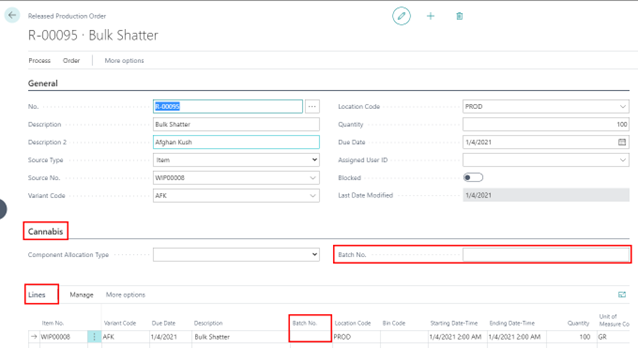
Create a new Released Production Order or open an existing Released Production Order. You will now see the Batch No. field under the Cannabis FastTab and the Lines FastTab.
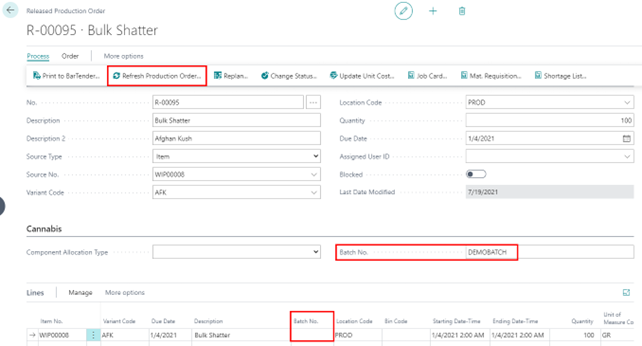
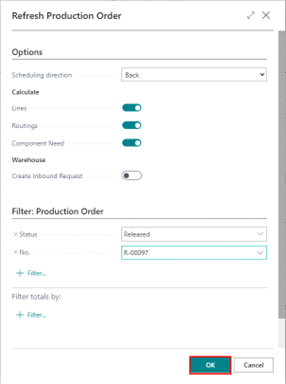
Enter a Batch No. for the Order. Notice the Batch No. field under the Lines FastTab is still blank. Then click Process – Refresh Production Order.
Click OK on the Refresh Production Order page.
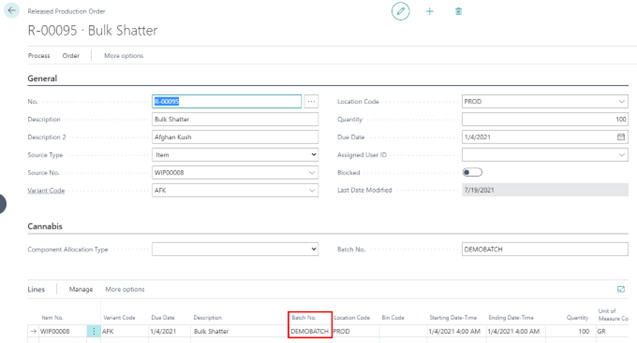
Now you will see the Batch No. on the line.
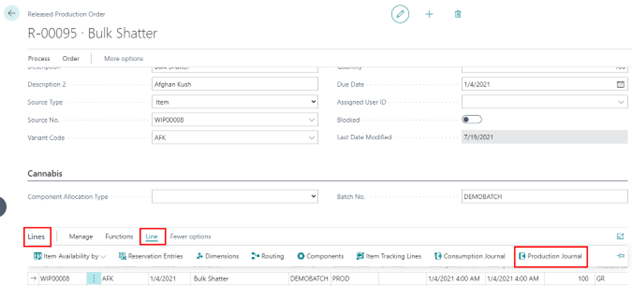
On the Lines FastTab click Line – Production Journal.
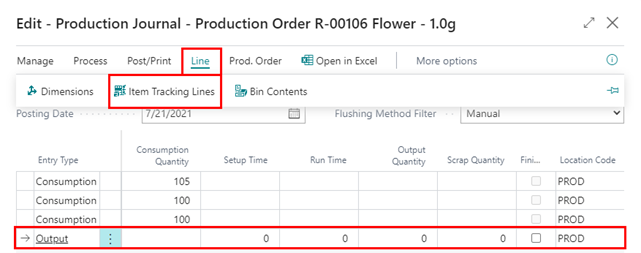
In the Production Journal highlight your Output line and click Lines – Item tracking Lines.
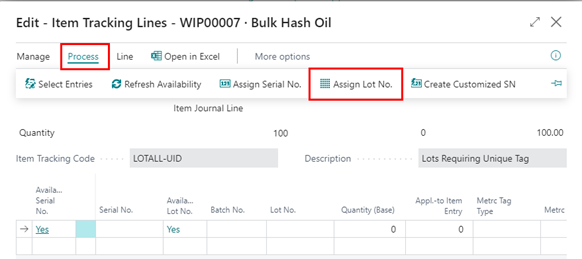
On the Item tracking Lines page, you can either manually enter a Lot No. or Assign a Lot No. to auto-populate the Batch No. with the Batch No. entered on the Released Production Order. To Assign a Lot No. click Process – Assign Lot No.
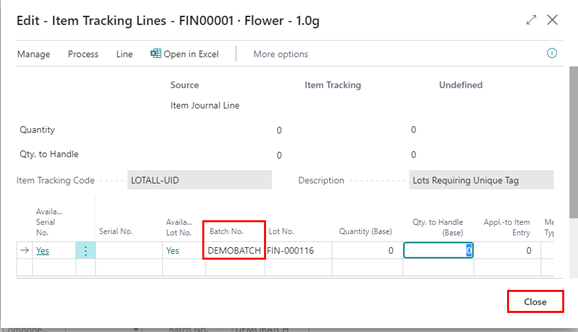
Now you can see the Batch No. in Item Tracking Lines. Click Close.
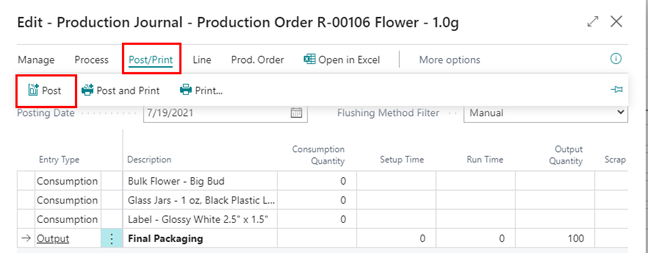
Now you can post the Output. Make sure you have the correct quantities that need to be posted and click Post/Print – Post.
Now you can see the Batch No. for the Output in the Item Ledger Entries Page.