Consumption Journal Improvements
SilverLeaf CBC includes functionality improvements to the Consumption process related to Production Orders. We added the Consumption Journal on the Released Production Order for easy and quick consumption of materials. We have also added the ability to enter or scan consumption quantities using Item No., Cross-Reference No., Lot No., or CBC Tag No.
How To: Consumption Journal
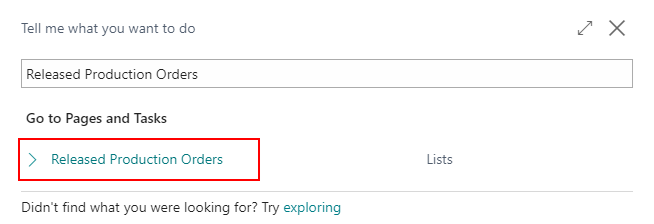
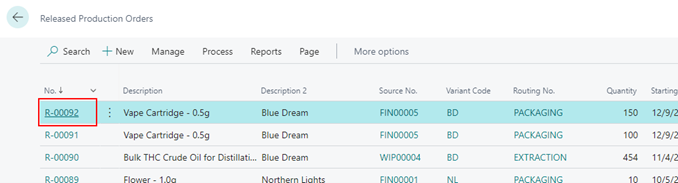
In the search, enter Released Production Orders and select the related link.
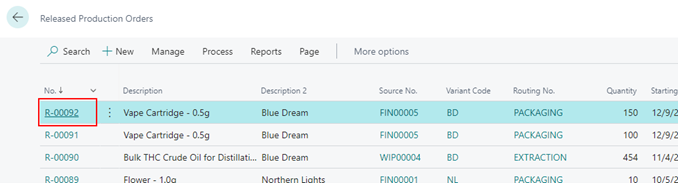
Either create a new Production Order or select an existing Production Order. In this example, we will be selecting an existing Released Production Order.
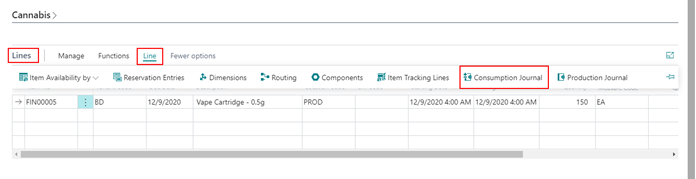
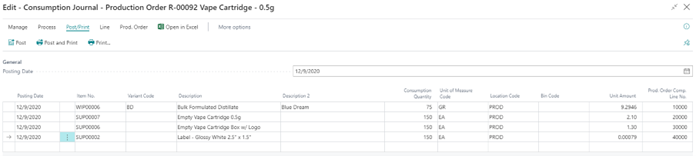
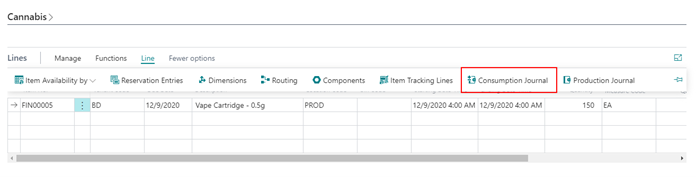
Within the Lines FastTab, select Line and then select Consumption Journal.
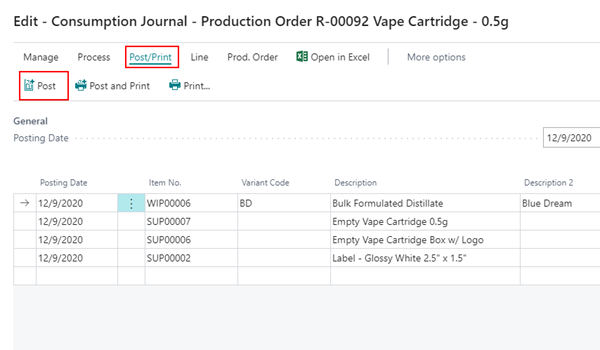
If a Bill of Materials exists for the Item, the Components will be already listed in the Consumption Journal.
Note
New Components can be added manually or via Consumption Scan Entry.
If any Components are Lot or Tag-tracked then the Lots or Tags can either be added via Consumption Scan Entry, or by manually selecting the Component line and selecting in the ribbon Line and then Item Tracking Lines.
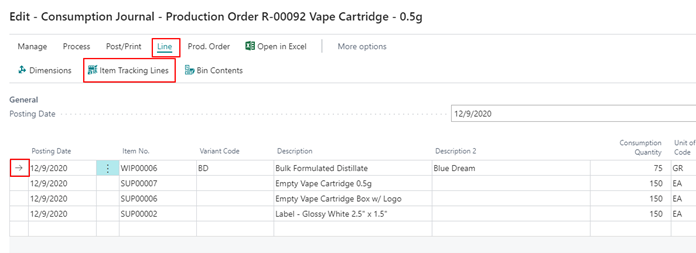
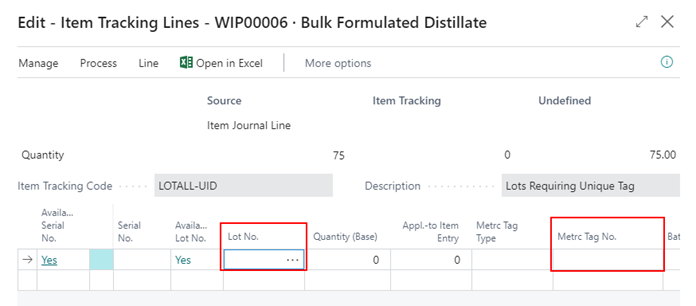
Select the Lot No. or CBC Tag No. using the action button in the relevant field.
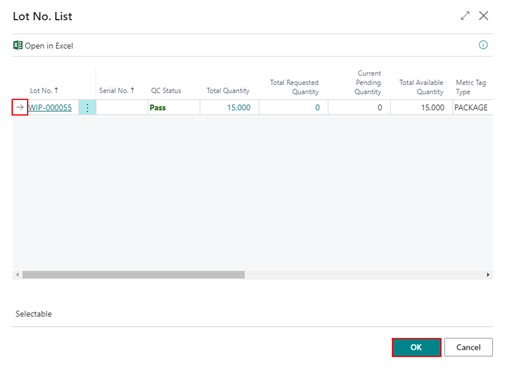
Select the correct Lot/Tag record and click OK.
Close the Item Tracking Lines page once complete.
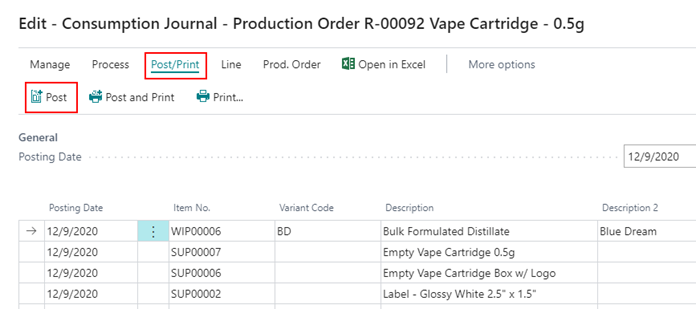
In the ribbon, select Post/Print and then Post to post the Components.
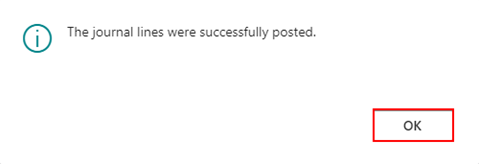
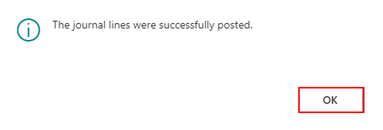
A confirmation message will be received on a successful post. Click OK to proceed.
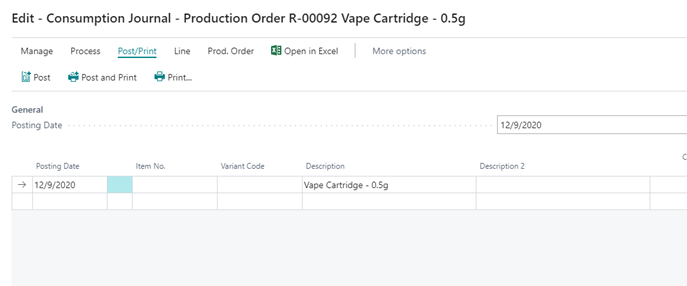
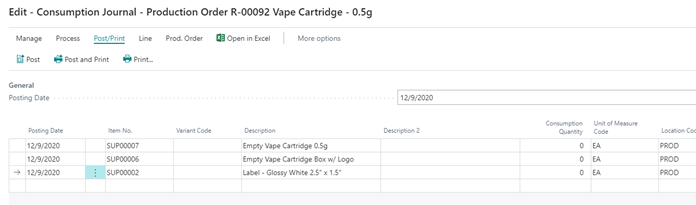
If all Components were posted, then the Consumption Journal will be cleared.
How To: Consumption Scan Entry
Walkthrough of how to use the Consumption Scan Entry within the Consumption Journal and/or Production Journal.
In the search, enter Released Production Orders and select the related link.
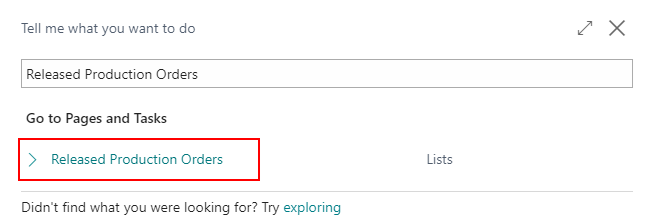
Either create a new Production Order or select an existing Production Order. In this example, we will be selecting an existing Released Production Order.
In the Lines FastTab select either the Consumption Journal or the Production Journal. In this example, the Consumption Journal will be used.
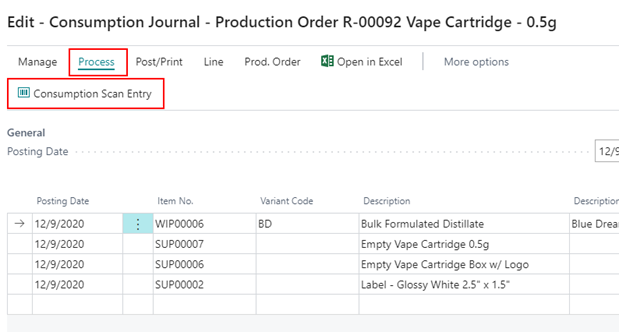
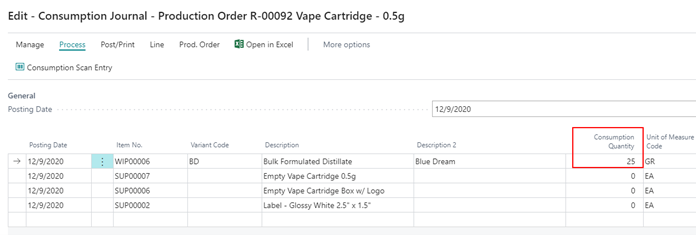
In the ribbon, select Process and then Consumption Scan Entry.
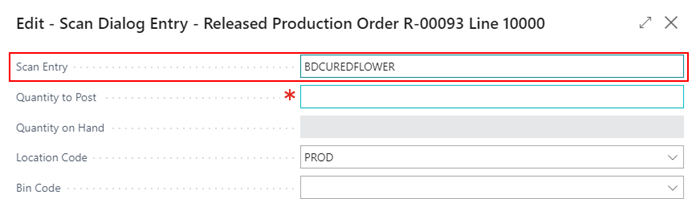
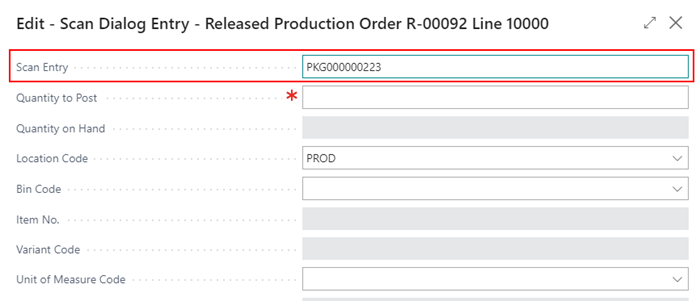
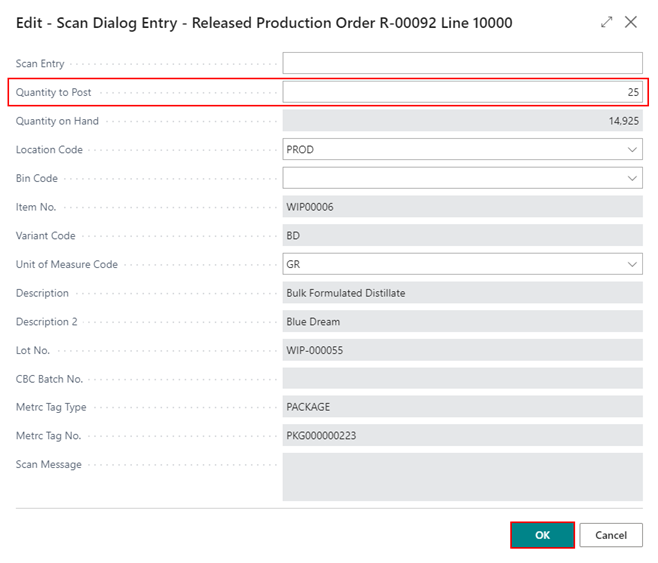
Within the Scan Entry field, scan either the Item No., Cross-Reference No., Lot No., or CBC Tag No. In this example, the CBC Tag No. was scanned in.
Note
The more detailed the scan (i.e., Lot No. or CBC Tag No.) the more details can be set against the consumption entry.
All relevant information will be populated based off the scan. Enter the Quantity to Post that was or will be consumed against the Production Order. Click OK once complete.
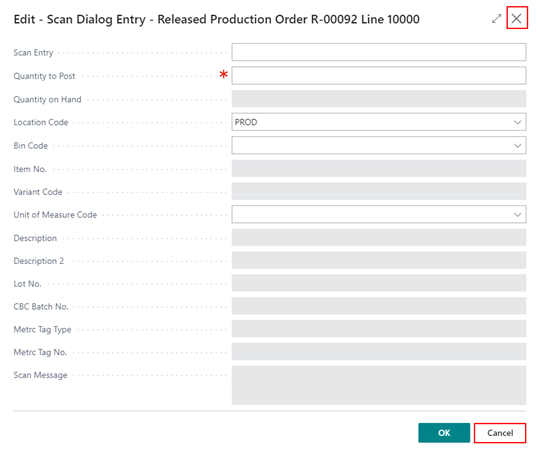
The Consumption Scan Entry page will remain open as this will allow the user to continue to the next scan. If complete with all scans, select either the X or Cancel to close the page.
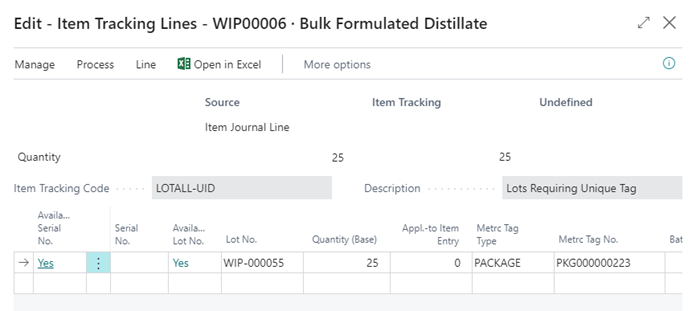
The Consumption Quantity will be populated if an existing Component line exists, or a new line will be added. Since the CBC Tag No. was scanned, the Item Tracking Lines information was populated as well.
In the ribbon, select Post/Print and then Post to post the Consumption against the Production Order.
A confirmation message will be received on a successful post. Click OK to proceed.
Any Component lines that were posted and consumed will be removed from the list upon posting.
How To: Add Item References to Items for Consumption Scan
Walkthrough on how to set up a Cross Reference No. (barcode) for use in Consumption Scan Entry.
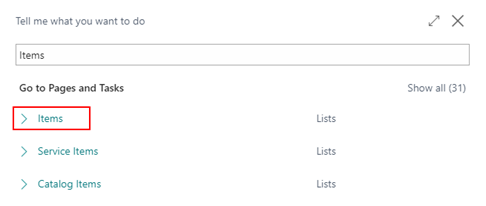
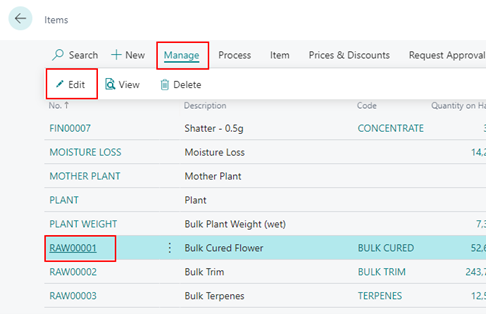
In the search, enter Items and select the related link.
Either select the Item No. or select Manage and then Edit to view the Item Card.
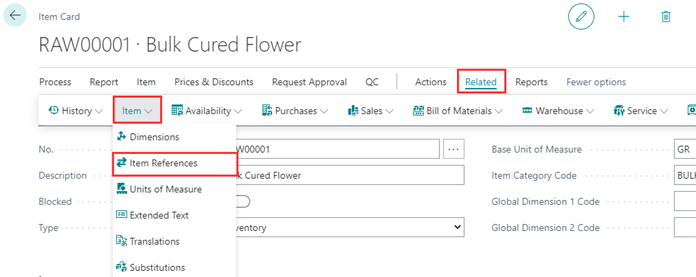
In the ribbon, select Related, Item drop-down, and then Item References.
For the Item-Reference Type select Bar Code, enter an Item-Reference No. to associate to the Item, select a Variant Code if the item uses Variants, and then select a Unit of Measure to associate to the Item-Reference.
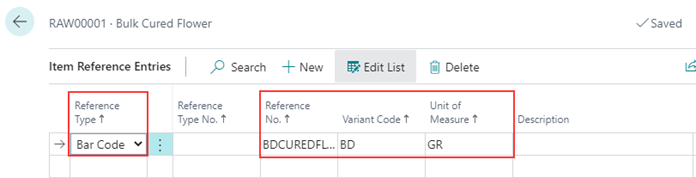
The Item No. and Variant Code combination can now be used in Consumption Scan Entry.