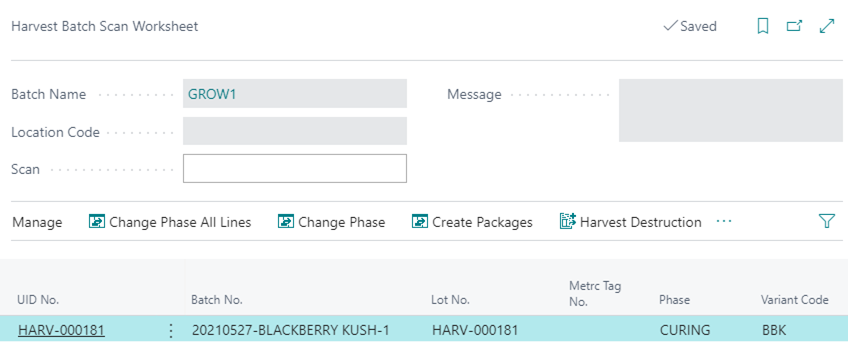
Harvest Batch Scan Worksheet
The Harvest Batch Scan Worksheet allows users to scan specific CBC Tag(s), Lot No.(s), and/or Batch No.(s) and complete an action against the scanned information for Harvest Batches.
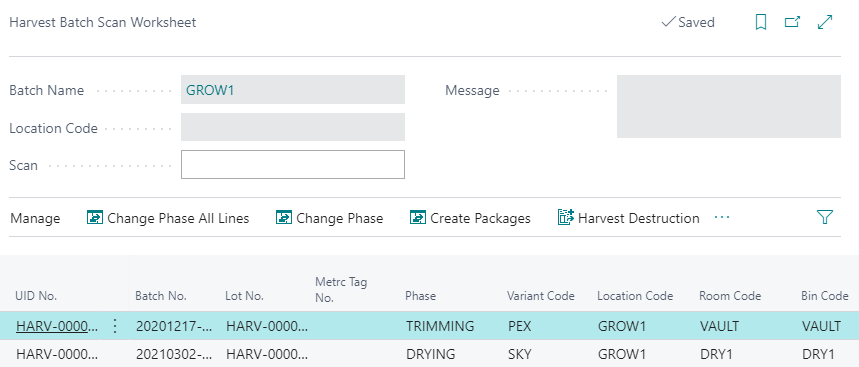
Change Phase All Lines
To change the phase for all lines on the Harvest Batch Scan Worksheet, take the followings steps:
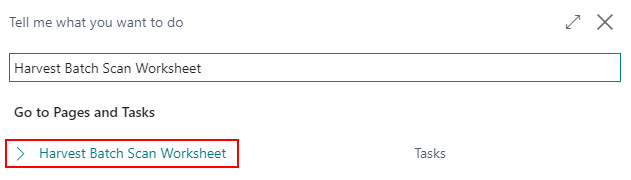
In the search, enter Harvest Batch Scan Worksheet and select the related link.
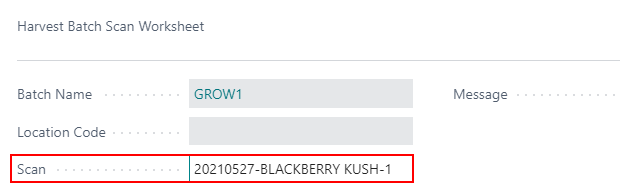
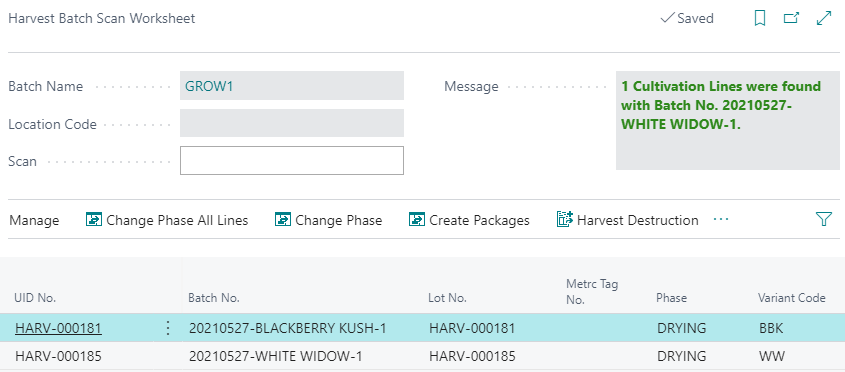
In the Scan field, scan a CBC Tag No., Lot No., or Batch No. to begin.
The below example is scanning the Batch No.
Repeat Step 2 until all CBC Tag No.(s), Lot No.(s), and/or Batch No.(s) are populated in the Worksheet.
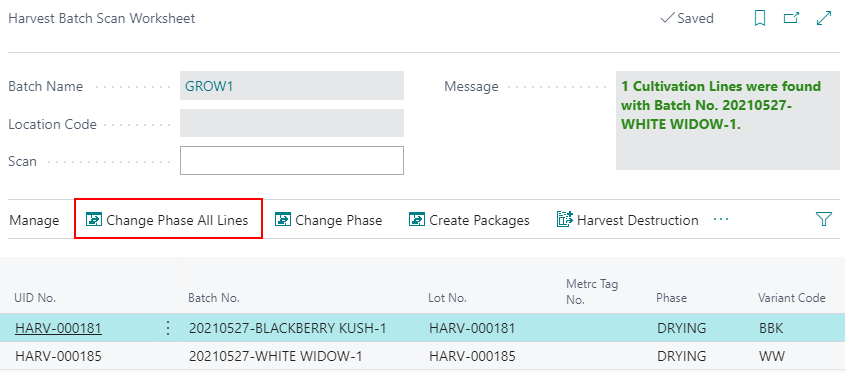
In the ribbon, select Change Phase All Lines.
Populate all relevant information associated to the Phase Change. For additional details about the specific Phase Change review the Cultivation Process Functions**section of the documentation.
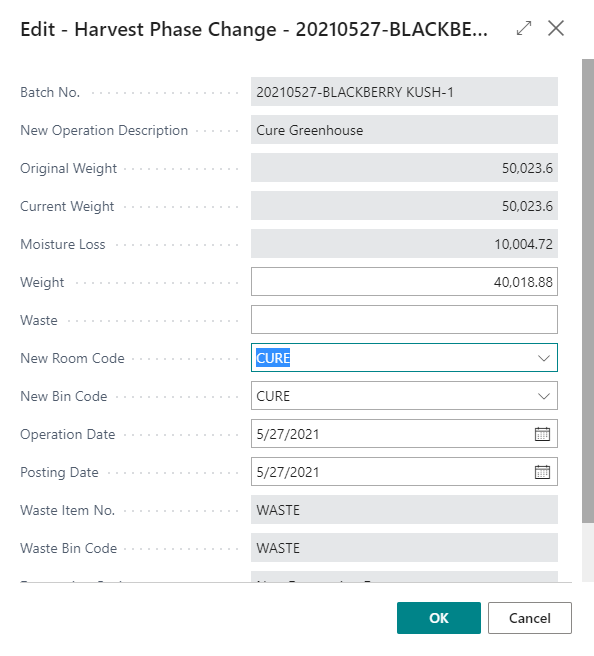
Click OK once complete.
If multiple lines exist, then a dialogue prompt will appear for each Batch that exists for the Phase Change to occur. Repeat Step 5 until all Change Phases are complete.
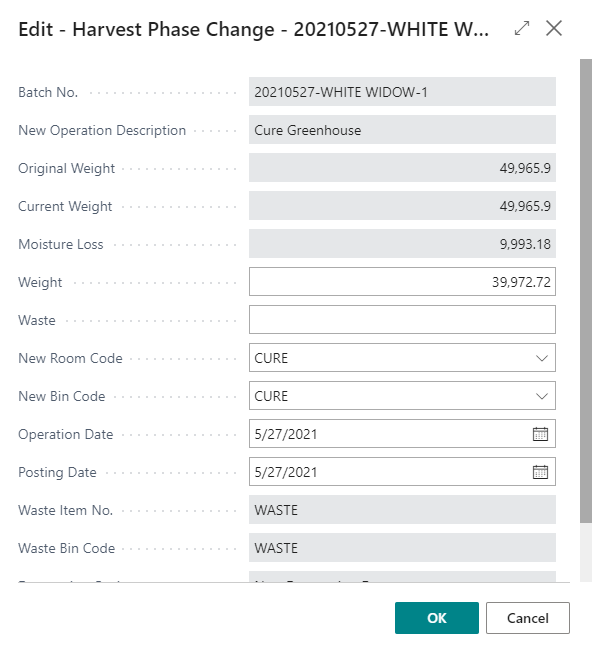
Once complete, the Harvest Batch Scan Worksheet will be back to the original state and will be ‘blank’ for additional scanning.
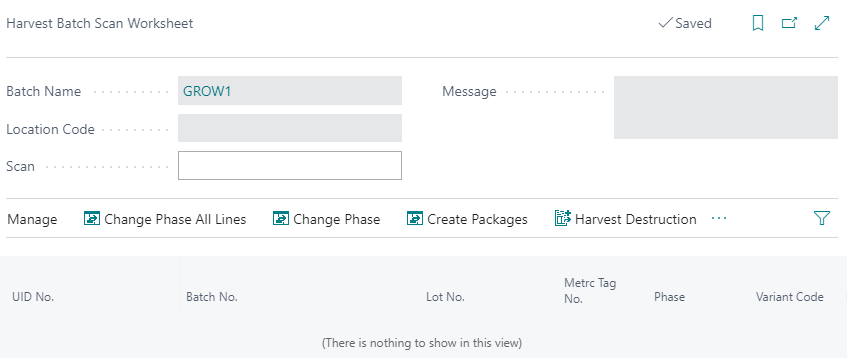
Change Phase
To change the Phase for a selected line on the Harvest Batch Scan Worksheet, take the followings steps:
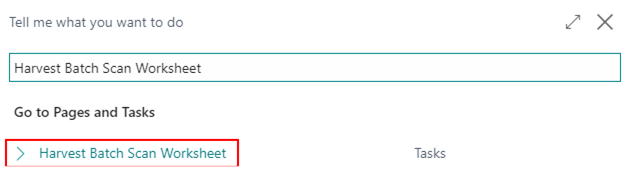
In the search, enter Harvest Batch Scan Worksheet and select the related link.
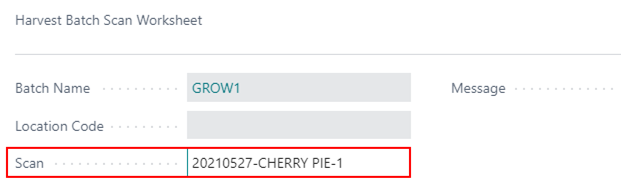
In the Scan field, scan a CBC Tag No., Lot No., or Batch No. to begin
The below example is scanning the Batch No.
Once scanned, all relevant details about the scanned CBC Tag No., Lot No., and/or Batch No. will be inserted into the Harvest Batch Scan Worksheet.
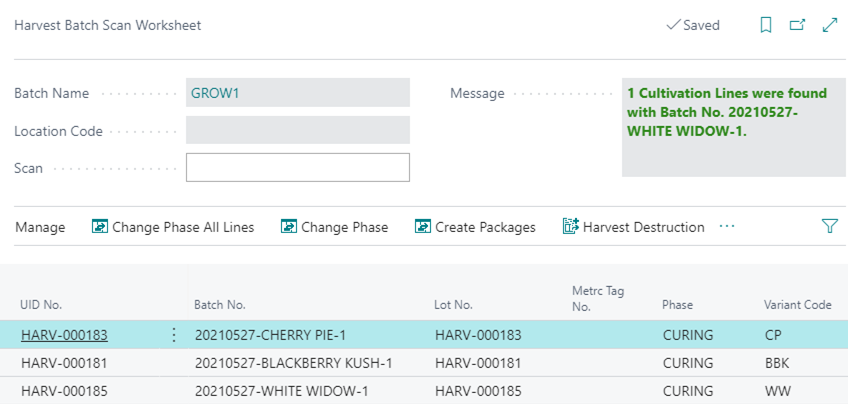
Select the line(s) for the Phase change and then in the ribbon select Change Phase.
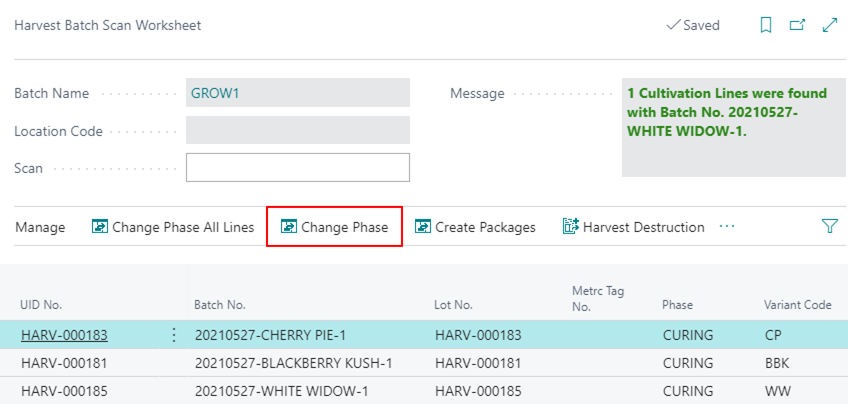
Populate all relevant information associated to the Phase change. For additional details about the specific Phase change review the Cultivation Process Functions section of the documentation.
Below is an example of a Phase change from a Curing Phase to a Packaging Phase.
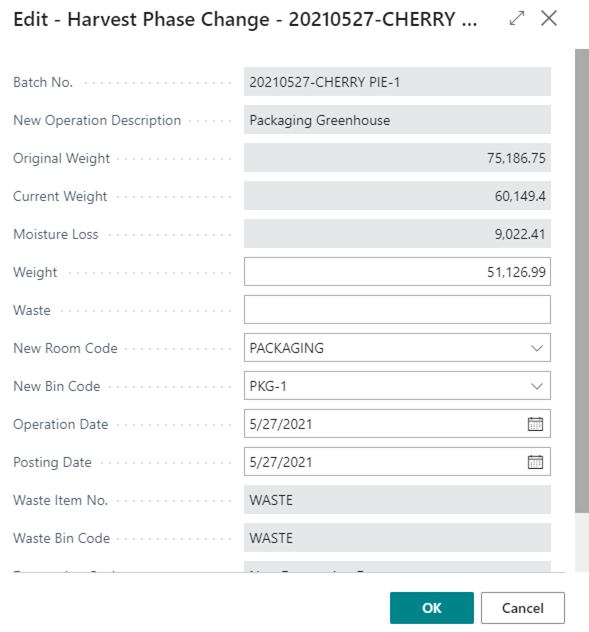
Click OK once complete.
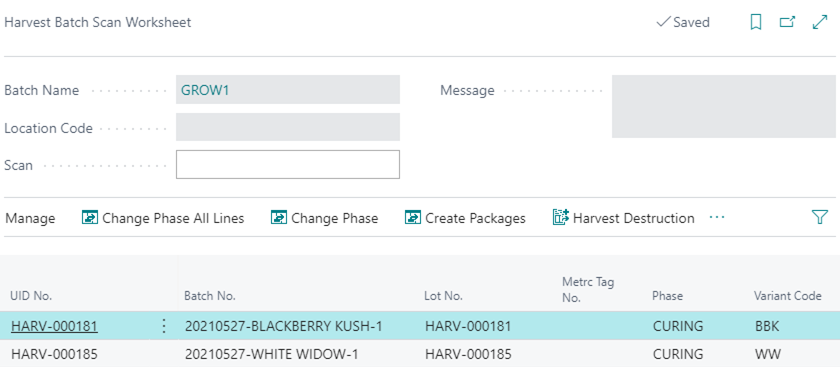
The selected lines will be cleared out while the remaining lines will remain in the Harvest Batch Scan Worksheet.
Create Packages
To create Packages from the Harvest Batch Scan Worksheet for Immature Plants, take the followings steps:
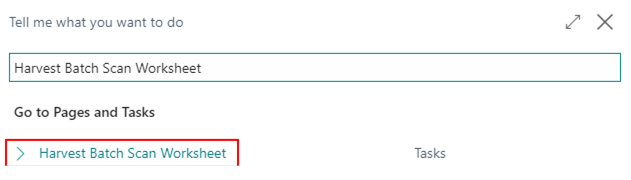
In the search, enter Harvest Batch Scan Worksheet and select the related link.
In the Scan field, scan a CBC Tag No.,Lot No., or Batch No. to begin.
The below example is scanning the Batch No.
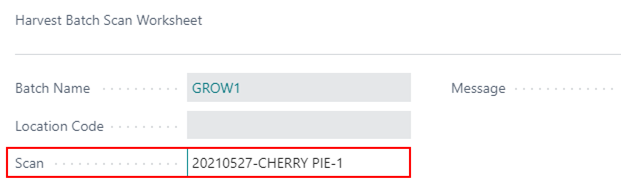
Once scanned, all relevant details about the scanned CBC Tag No., Lot No., and/or Batch No. will be inserted into the Plant Scan Worksheet.
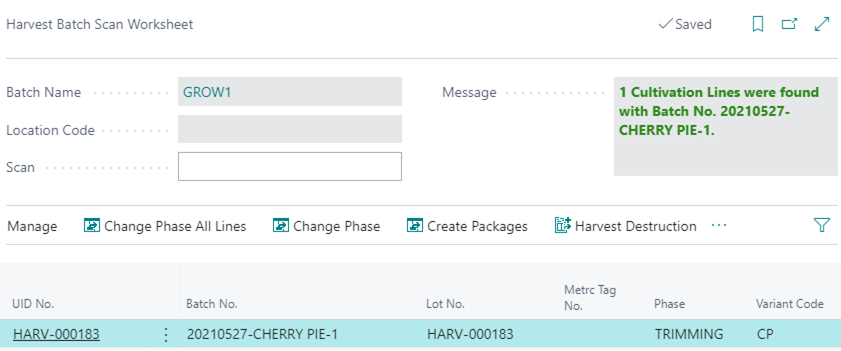
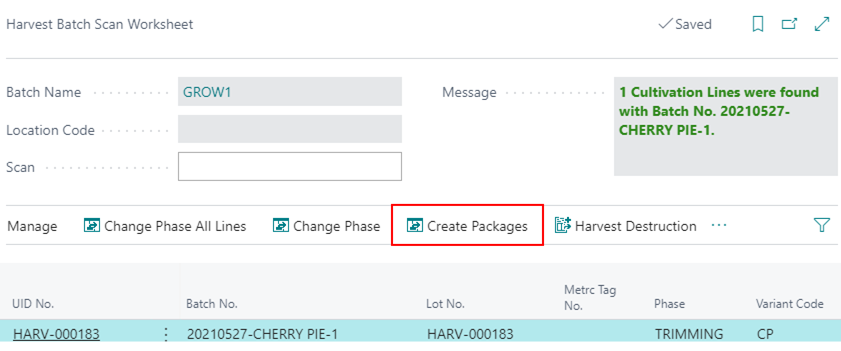
Select the line(s) for the Package and then in the ribbon select Create Packages.
Populate all relevant information for the Package. For additional details about the specific Phase change review the Cultivation Process Functions section of the documentation.
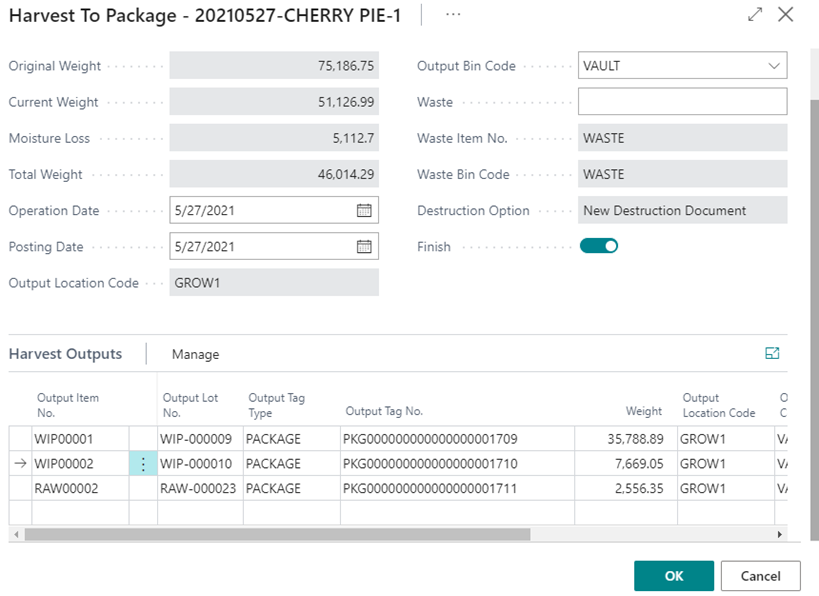
Click OK once complete.
The selected lines will be cleared out while the remaining lines will remain in the Harvest Batch Scan Worksheet.
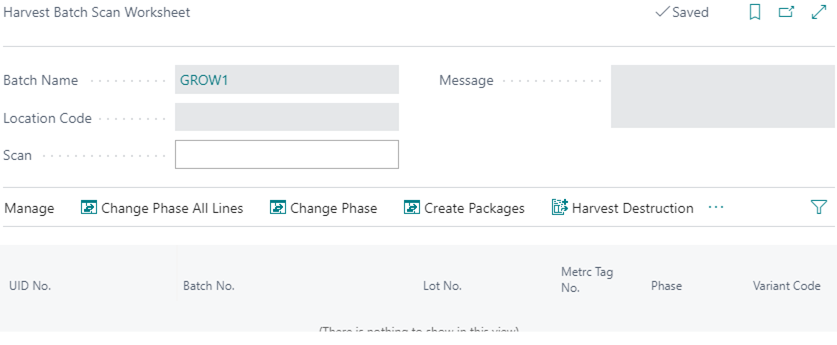
Harvest Destruction
To create Destruction Documents from the Harvest Batch Scan Worksheet, take the followings steps:
In the search, enter Harvest Batch Scan Worksheet and select the related link.
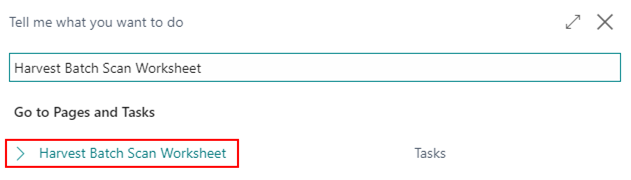
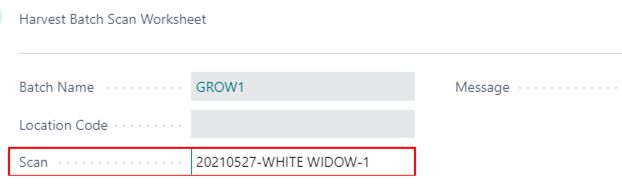
In the Scan field, scan a CBC Tag No., Lot No., or Batch No. to begin.
The below example is scanning the CBC Tag No.
Once scanned, all relevant details about the scanned CBC Tag No., Lot No., and/or Batch No. will be inserted into the Harvest Batch Scan Worksheet. Repeat Step 2 until all lines are scanned.
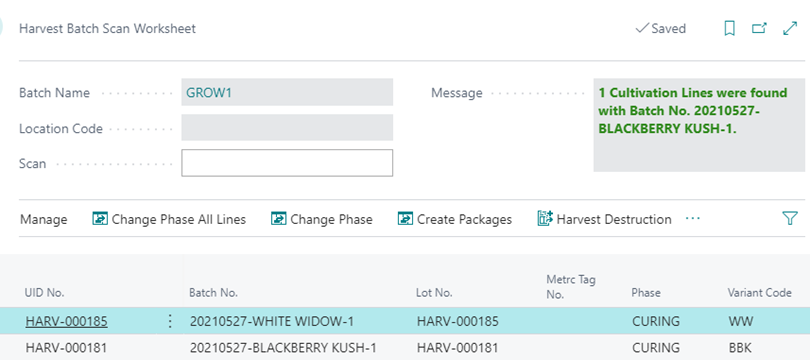
Select the line(s) of the Plants to be destroyed, and then in the ribbon select Harvest Destruction.
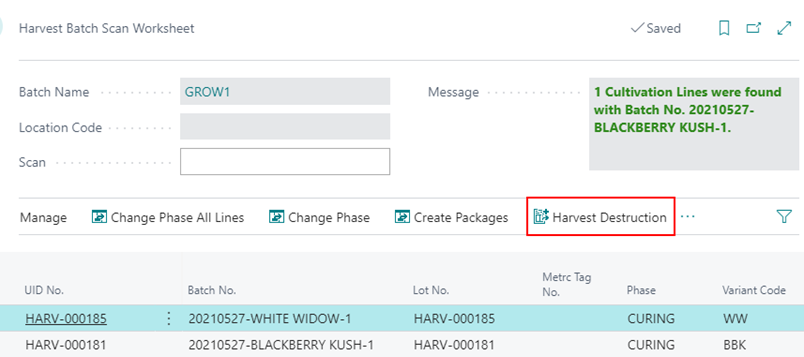
Populate all relevant information associated to the Harvest Destruction. For additional details about the specific Phase Change review the Cultivation Process Functions section of the documentation.
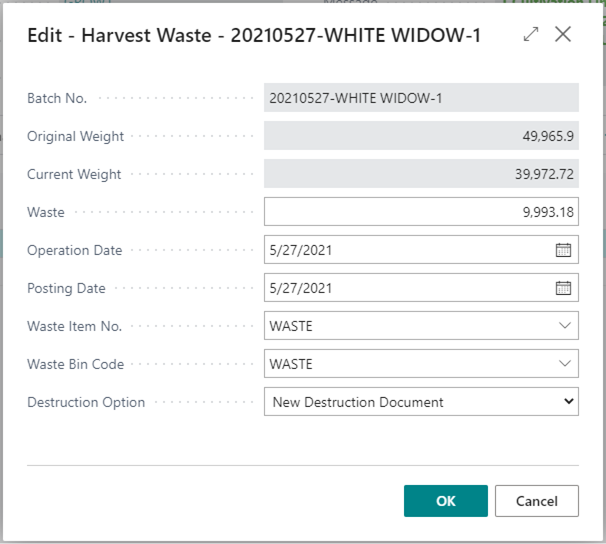
Click OK once complete.
Once complete, the selected lines will be cleared out while the remaining lines will remain in the Harvest Batch Scan Worksheet.