Master Variants
In the CBC module, variants are used to identify strains of cannabis based on the item. Much like standard BC, the concept is that item variants can be defined as any variation in item characteristics, like size, color, model and in the case of CBC, strain. Within CBC, variants are linked to a table called Master Variants. Master variants are variant cards that can be attached to single or multiple items.
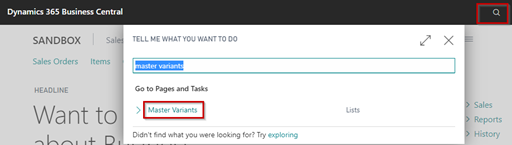
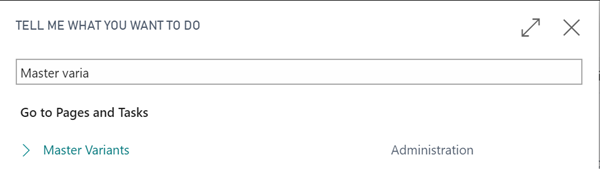
Navigate to Master Variants, click the magnifying glass, and enter Master Variants in the search box.
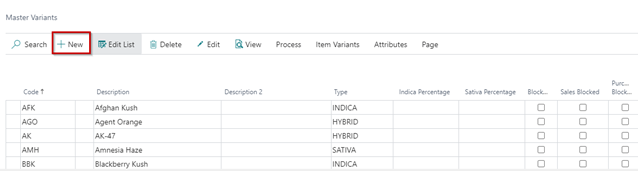
This will open the Master Variants list page. To set up a new Master Variant, click New.
The Master Variant card opens.
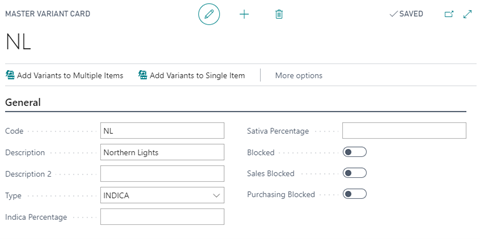
General FastTab
| FIELD NAME | FUNCTION |
|---|---|
| Code | Code for the variant. |
| Description | Description of variant. Text field. |
| Description 2 | Description two of variant. Text field. |
| Type | Type of the variant or strain. Dropdown to CBC code table. |
| Indica Percentage | Percentage of Indica in the variant or strain |
| Sativa Percentage | Percentage of Sativa in the variant or strain |
| Blocked | If field is enabled, the variant will not be available for use on sales documents. |
| Sales Blocked | If field is enabled, the variant will not be available for use on sales documents. |
| Purchase Blocked | If field is enabled, the variant will not be available for use on purchase documents. |
Variant Attributes Values FastTab
On the Variant Attribute Values tab, the program allows Attribute codes and values to be assigned to Master Variants, and therefore Variants and Item Variants. Variant Attributes, like standard Business Central Item Attributes, are assignable characteristics values for a Variant or Strain. For example, a strain may have characteristics that will be used to describe it (such as lineage or palate, for example). All these attributes and more can be assigned to a Variant so the user could look up Variants based on an Attribute or that information can be used for data reporting or product labeling.
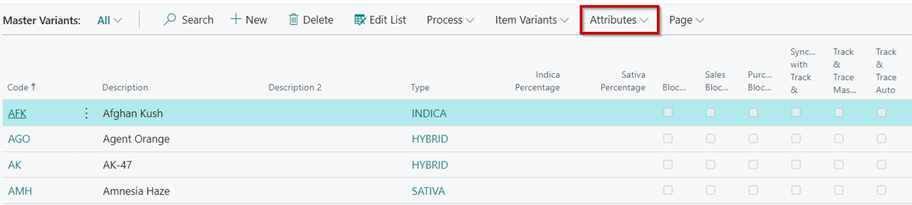
To identify existing attributes assigned to a variant from the master table, click the Attributes button in the Master Variants Table ribbon.
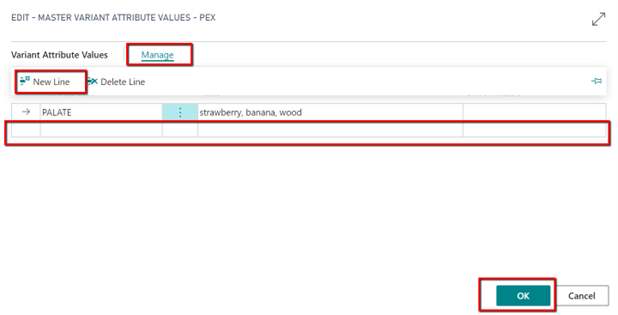
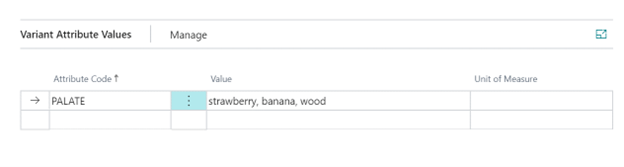
To assign a Variant Attribute Value to a variant from the variant card, click the dropdown, click Manage/New Line and type in the code and value(s).
How To: Create New Variant Attributes
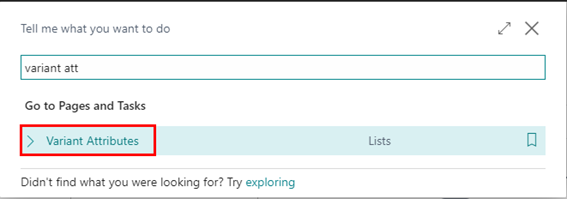
To navigate to the list of all Variant Attributes, click on the magnifying glass, and in the search box, type Variant Attributes.
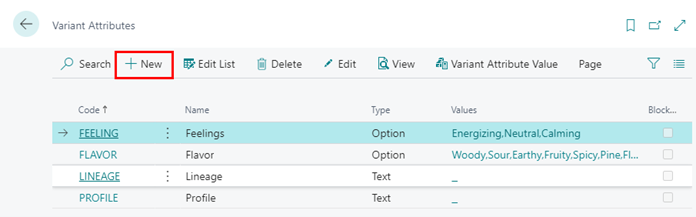
Click New.
This opens the Variant Attribute Card.
Assign a Code, Name, and Type.
Note
Different Type options are described below. For the below example we chose Value, so we’ll need to select Variant Attribute Value in the ribbon.
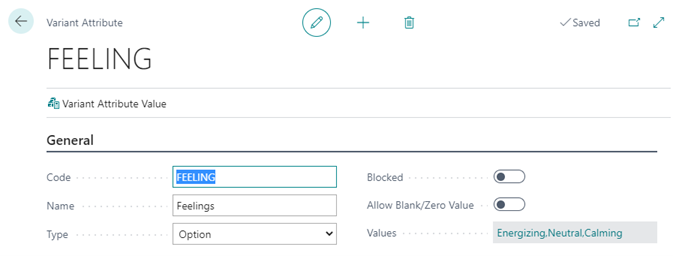
FIELD NAME FUNCTION Code Code for the Variant Attribute. Name Description of Variant Attribute. Text field. Type - Option: Requires an option. User defined.
- Text: Free form text by user.
- Integer: A number value.
- Decimal: A decimal range.
Blocked If this is toggled, on the Variant Attribute will be blocked from being used. Allow Blank/Zero Value If this is toggled on, it allows the program to post a Variant Attribute value with zero and/or blank value in the field. Values Values are user defined based on the Code and Type. Now you can assign your Values as text in the Value Column.
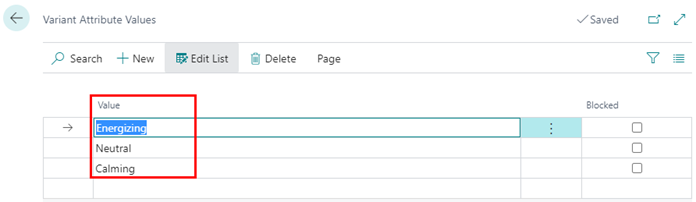
Now the Values are populated.
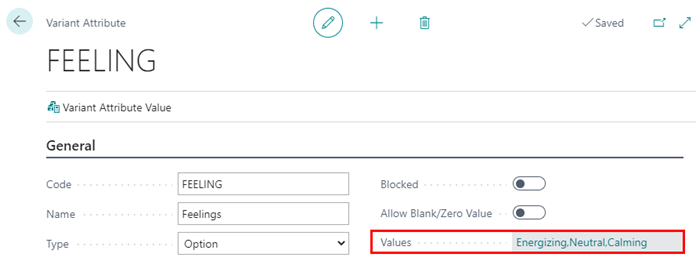
How To: Assign Variant Attributes
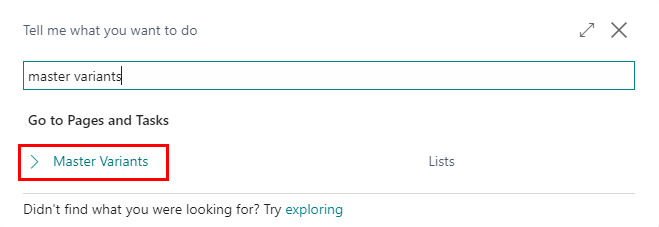
Click the Magnifying Glass at the top right of the page, enter Master Variants in the search box, and select Master Variants from the results.
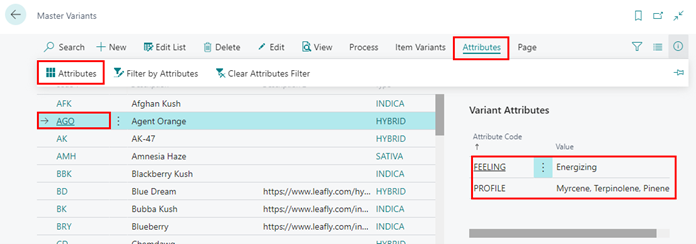
Select the Master Variant you would like to assign an Attribute to, then click Attributes, and then Attributes in the Action Pane.
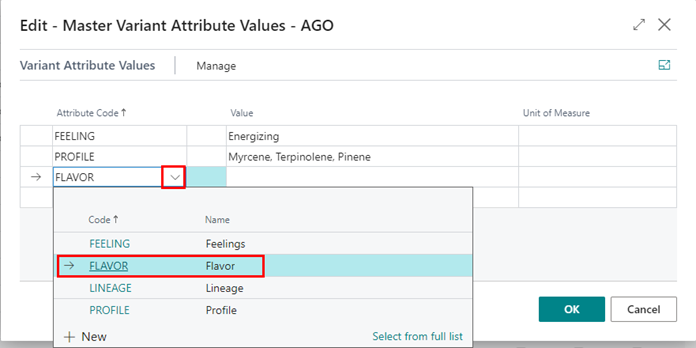
Click the Dropdown Arrow on the next available line and select an Attribute.
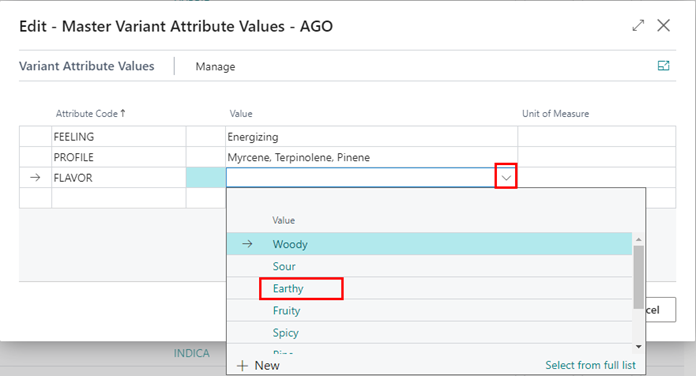
Click the Dropdown Arrow under the Value Column, select your Value, and click OK.
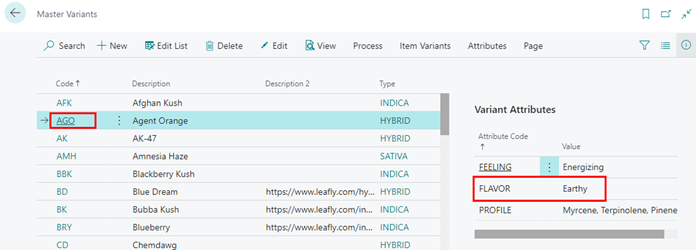
Now you can see the Attribute in the Factbox associated with the Variant selected.
How To: Create & Assign Variants to Items
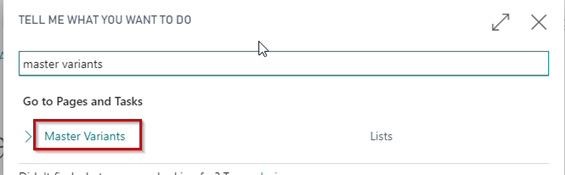
In the search box, enter Master Variants and click the related link.
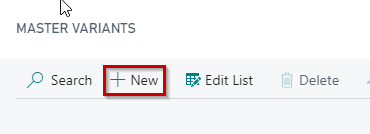
In the ribbon, click the New button. This will open a new Master Variant Card.
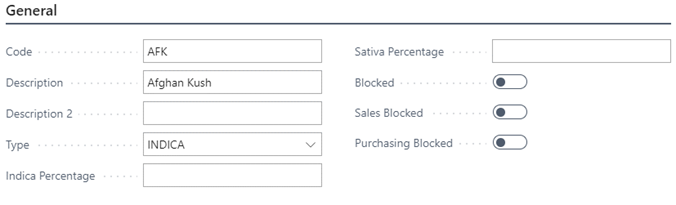
Complete the General FastTab fields below:
a. In the Code field, enter a code to represent the Master Variant. May contain up to 10 characters.
b. In the Description field, enter a code to represent the Master Variant. May contain up to 10 characters.
c. In the Description 2 field, it is optional to enter an additional description of the Master Variant. May contain up to 50 characters.
d. In the Type field select the Cannabis Code. A new Cannabis Code can be setup by clicking New in the dropdown window.
e. Toggle the Blocked box to block the Master Variant from being used in both sales and purchases.
f. Toggle the Sales Blocked box to block the Master Variant to be used in both sales transactions.
g. Toggle the Purchasing Blocked box to block the Master Variant from being used in purchase transactions.
It is optional to select Variant Attributes in the Variant Attribute Values FastTab.
How To: To Assign a Variant to an Individual Item
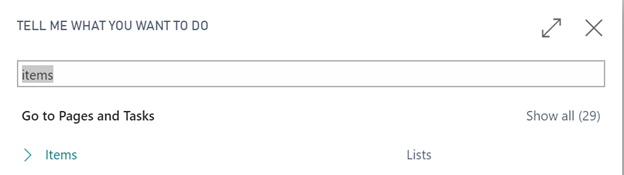
In the search box, enter Items and click the related link.
From the Items list page highlight the item to assign the variant or open the Item Card, in the Home ribbon, click on Actions/Variants.
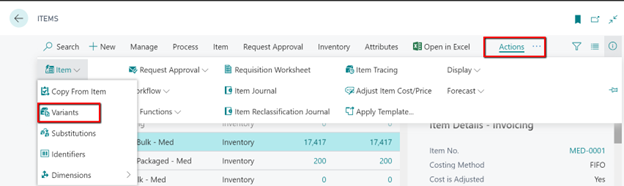
This will open the Items Variants list page for the Item editing.
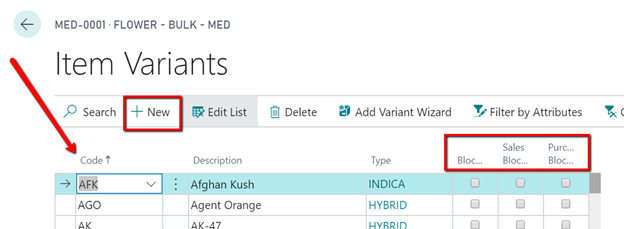
Click on the New button in the ribbon to add a single Variant.
Select the Variant from the dropdown in the Code column. This will populate the other information from the Variant Card.
If a Variant is no longer used or will be retired, the Variant can be blocked from various activities on the Item Variants page. The user can select the Blocked or Sales Blocked or Purchasing Blocked to prevent the Variant from being used, sold, or purchased from this page.
How To: Assign Multiple Variants to a Single Item
In the search box, enter Master Variants and click the related link.
From the Master Variants list page, in the Home ribbon, click Process/Add Variants to Single Item button.

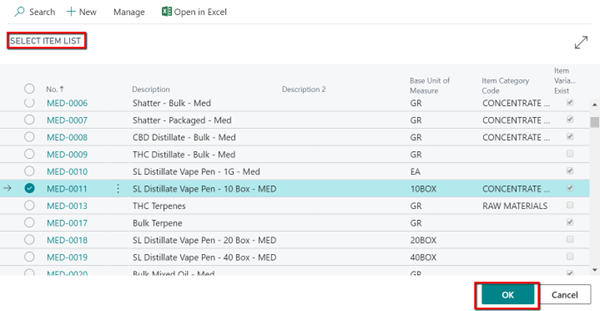
This will open a Select Item List page. Click on the Item within the list that the Variants will be assigned.
Click OK in the bottom right corner of the Select Item List page.
Note
NOTE: The list of Variants will only display Variants that are not already assigned to the selected Item.
This will open a Select Master Variant list page. Click on the ellipsis and Select More to add each Variant within the list to add to the single Item.
With the Variants highlighted, click on the Mark Selected button in the ribbon. This will add a check mark to the Variants selected.
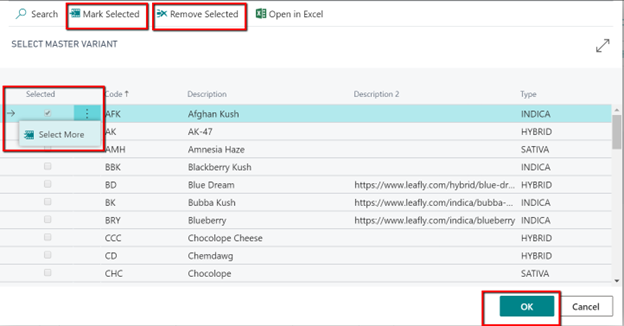
If a Variant is marked in error, then the user can highlight the Variant and click the Remove Selected button in the ribbon.
Click OK in the bottom right corner of the Select Master Variant list page.
How To: Assign Multiple Variants to Multiple Items
In the search box, enter Master Variants and click the related link.
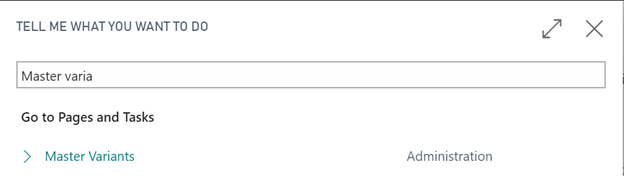
From the Master Variants list page, in the Home ribbon, click Process/Add Variants to Multiple Items button.

This will open a Select Item List page. Click on the ellipsis and Select More to add each variant within the list to add to multiple items.
Click on each item within the list that the variants will be added.
With the items highlighted, click on the Mark Selected button in the ribbon. This will add a check mark to the Items selected.
If an Item is marked in error, highlight the Item, and click Remove Selected button in the ribbon.
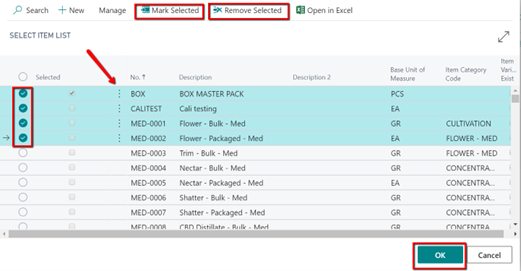
Click OK in the bottom right corner of the Select Item List page.
This will open a Select Master Variant list page. Click on the ellipsis and Select More to add each Variant within the list to add to the previously selected items.
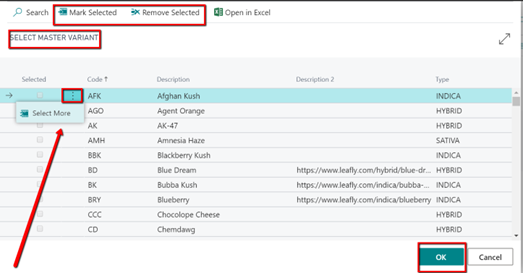
With the variants highlighted, click on the Mark Selected button in the ribbon. This will add a check mark to the Variants selected.
If a Variant is marked in error, then the user can highlight the variant and click Remove Selected button in the ribbon.
Click OK in the bottom right corner of the Select Master Variant list page.