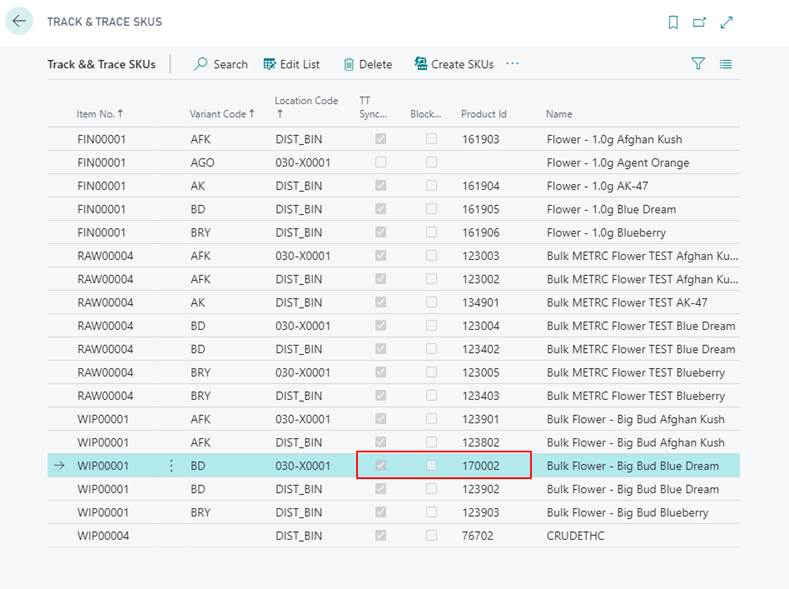
How To: Create a SKU and Product in METRC Using Create SKU
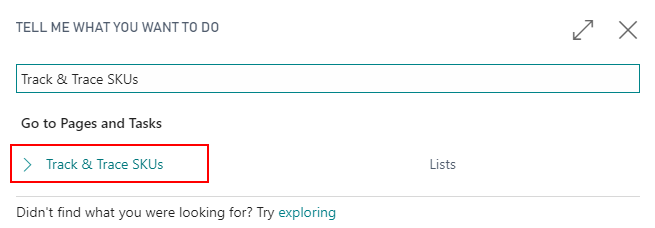
In the search, enter Track & Trace SKUs and select the related link:
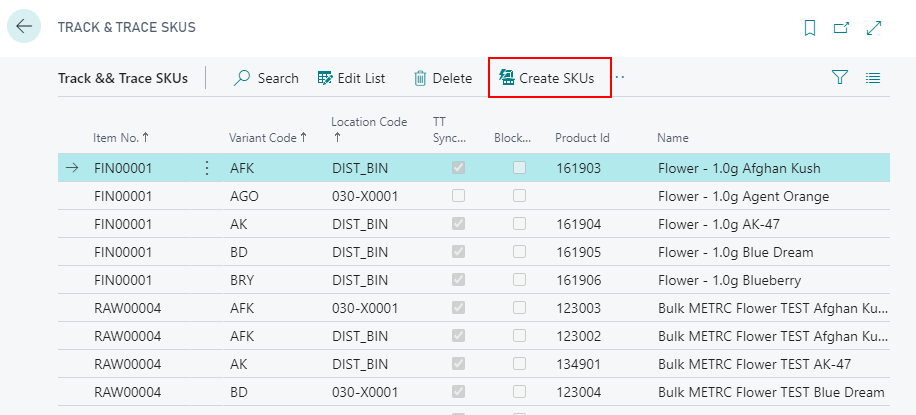
In the ribbon, select Create SKUs to begin the process.
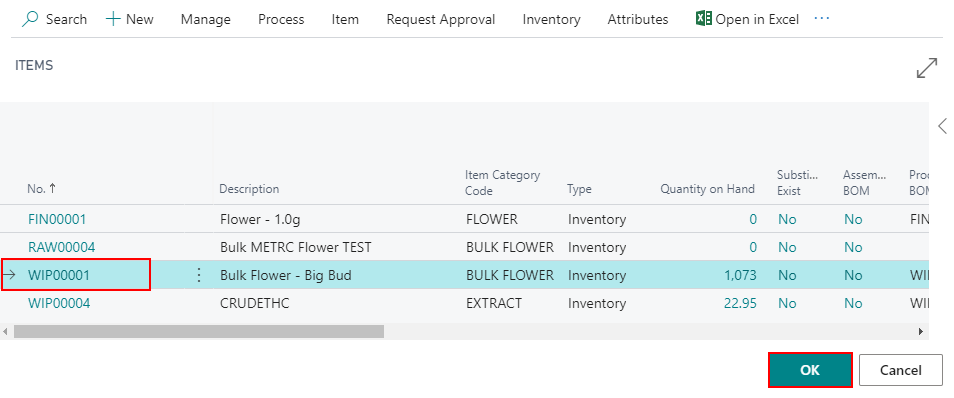
Select an Item, this list will be filtered to only Items that are Track & Trace enabled. Click OK once complete.
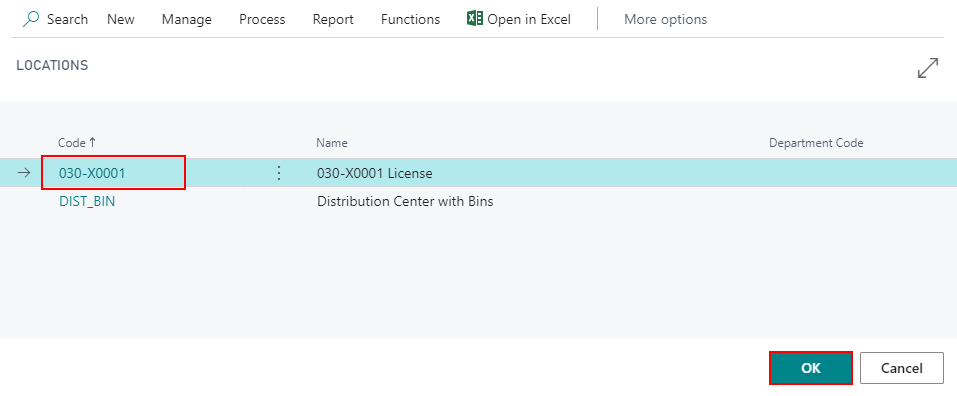
Next, you will be prompted with available Locations/Licenses that will assigned to this SKU for creation in METRC. Click OK once complete.
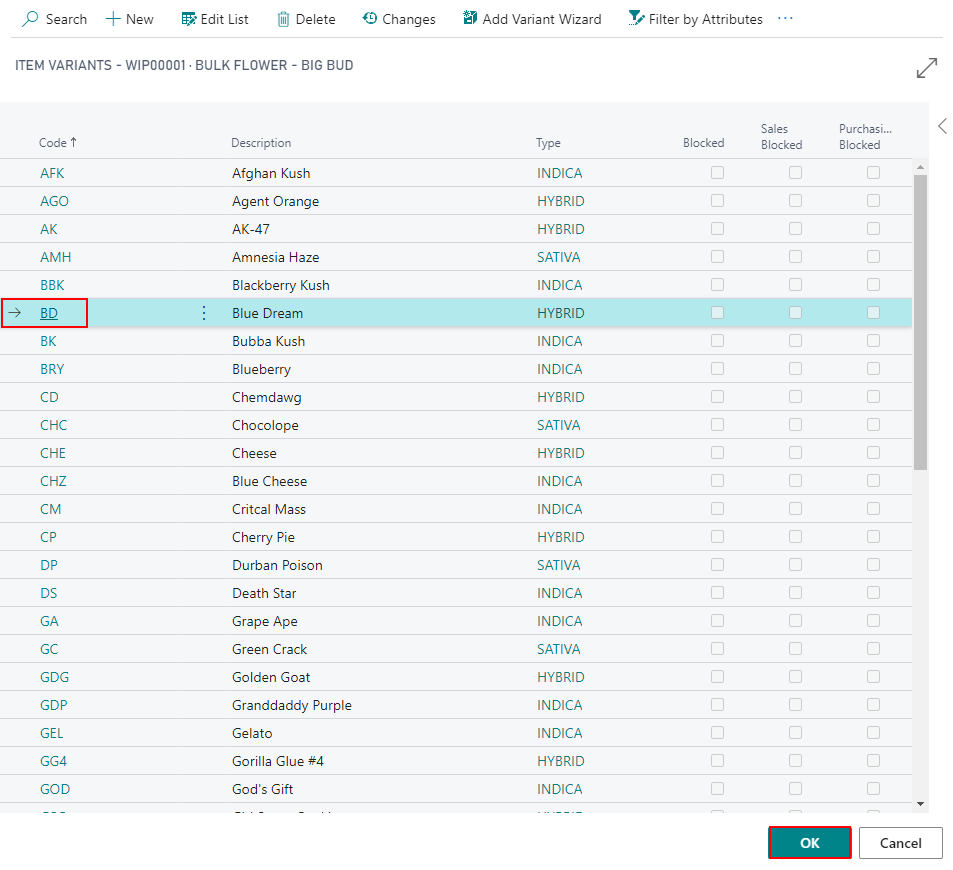
If Variants are being used, select a Variant Code that will be assigned to the SKU. Click OK once complete.
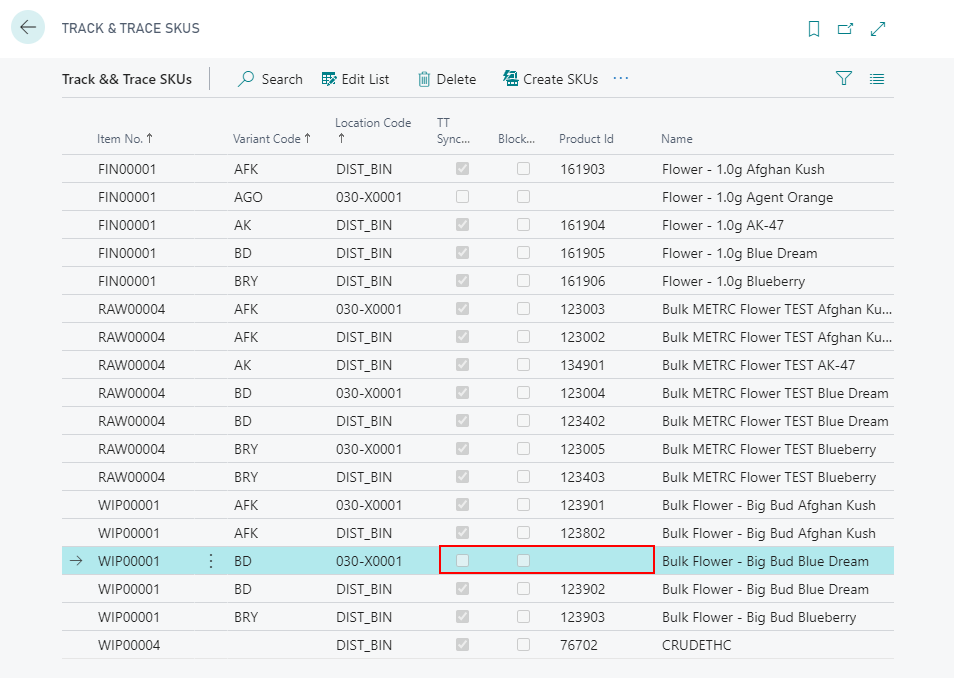
The SKU will be added to the list of Track & Trace SKUs, but no assigned Product Id will exist as it has not been synchronized yet.
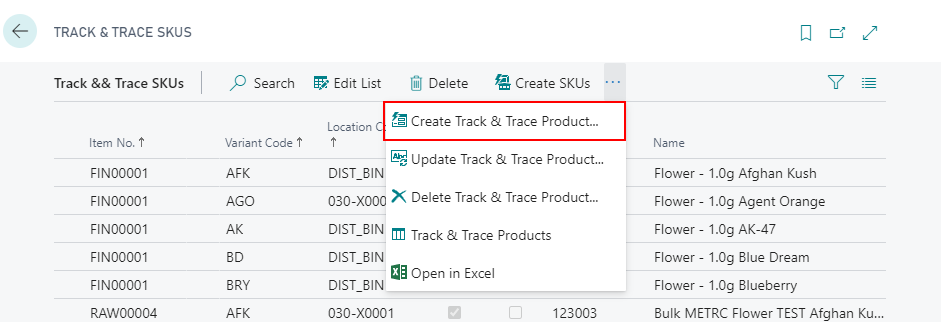
In the ribbon, select Create Track & Trace Product… to create the Product in Metrc and synchronized within Business Central.
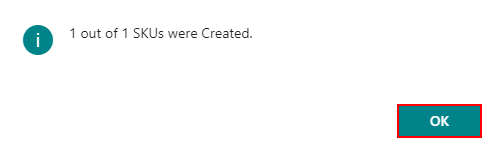
A confirmation message will confirm the creation of the SKU. Click OK to proceed.
A Product Id and TT Synchronized will now be populated.