Licenses and Permits
Within the CBC module, Licenses and Permits are attached to the master records to comply with state regulations based on the License or Permit the Location, Driver, Employee, Shipping Agent, Customer or Vendor may retain for purchase, sale, delivery, manufacturing, or cultivation of cannabis products. Licenses and Permits List page is where the program houses all applicable License and Permits for Customers, Vendors, Driver/Employee, Shipping Agents and Locations. Within the table, the program does not allow duplicate License Numbers even if the number is attached to a different License Type. To circumvent this, the program allows License Source Type and License Source Number to be used as a way for multiple entities to point to the same License Number.
The associated licensing terms that users may see in this section are as follows:
| FIELD NAME | FUNCTION |
|---|---|
| Origin | Typically, the Origin License is associated with the Vendor in a purchase scenario. In a sales scenario, the Origin License would be the License associated with the shipping Location. |
| Destination | Typically, the Destination License is associated with the receiving Location in a purchase scenario. In a sales scenario, the Destination License will be the Customer’s License. |
| Distributor | License associated with the shipping agent assigned to the purchase or sales document. |
| License Source Type | Type of license based on source record. Examples include Vendor, Shipping Agent or Location. |
| License Source Ship-To | Used when associating a license to a Customer’s Ship-To Address code. |
Note
A Shipping Agent must be assigned to Sales and/or Purchase documents (Orders, typically) in order for the Distributor License to populate.
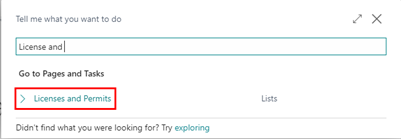
To navigate to Licenses and Permits, click the magnifying glass and type License and Permits.

Note
Licenses and Permits can be created from the source record cards, like Customer, Vendor, Shipping Agent and Location.

Within this section we will discuss and demonstrate the various licensing and permit setups, fields, and functionality. The two sections we will review in the section are License Types and License Codes.
License Types
License Types are part of the CBC Setup. License Types would be created within the program based on the state regulations pertaining to whether the company has retained a license for adult use, medicinal use, cultivation or as a driver or carrier. License Types can be auto linked with Dimensions as demonstrated in CBC Setup page, General FastTab.
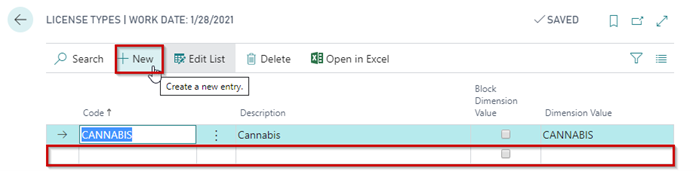
Within the License Type page, much like standard Business Central Dimension Codes, the user will set up a code, description, and the value. The program can block the Dimension value from being populated on source documents. The Block Dimension Value field prevents the system from auto-creating the matching License Type "Dimension Value".
To navigate to License Types, click the magnifying glass and type License Types.

License Codes
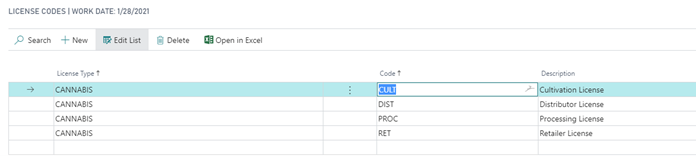
License Codes are based on state regulated licensing structures. Examples of license types include, but not limited to: Distribution, Cultivation, Manufacturing and Retail. The types also define whether the license is temporary, transport only, packaging, volatile or nonvolatile in specific instances per state regulation. The codes are typically setup with the prefix of the license number, or the track and trace provider’s nomenclature of the license purchased, like DIST for Distribution. Upon setup of License Codes, the License Types should be linked within the program.
To navigate to Licenses Codes, click the magnifying glass and type License Codes.

To enter a new License Code, click new and fill out the applicable fields.
How To: Create and Assign a License or Permit
Click the magnifying glass and in the search box, enter Licenses and Permits and click on the related link.

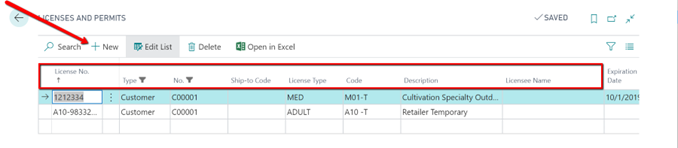
In the Home ribbon, click the New button. This will open the Licenses and Permits list page with a blank line inserted.

In the License No. field, enter the state issued number.
In the Type field, select from the drop down if the License Type is one of the following:
a. Customer b. Vendor c. Shipping Agent d. Location e. Employee f. Driver
In the No. field, select the appropriate source of which to assign the new License Number.
Note
This list is based on the License Type selected in the previous field.
In the Ship-To Code field, if there is a different Ship-To Code associated to the specified No., select it from the dropdown.
Note
This is the information that feeds the destination information on the manifest.
In the License Type, select from the dropdown which type of License for the entry.
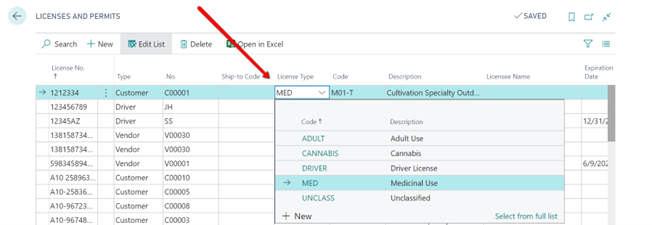
In the Code field, select from the dropdown of the predetermined list the License Code to assign.
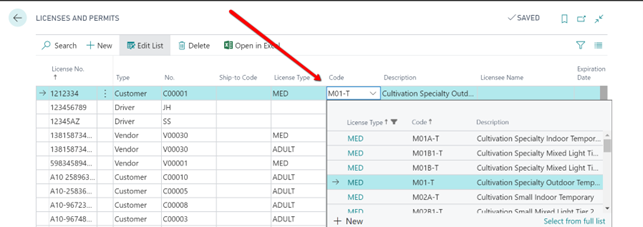
The Description field will populate with the description of the Code. This can be edited if desired.
In the Licensee Name field, enter the Name as specified on the state issued License.
In the Expiration Date field, enter the Expiration Date indicated on the License. If the Work Date is after the Expiration Date, an error will pop-up for the user to update the Expiration Date.
Note
This field is not mandatory in the CBC Module.
In the County field, enter the County indicated on the state License.
In the State field, enter the State indicated on the state License.
Mark the Blocked box to prevent the license from being associated with any transactions.
In the State License No. field, re- enter the state issued License Number.
Note
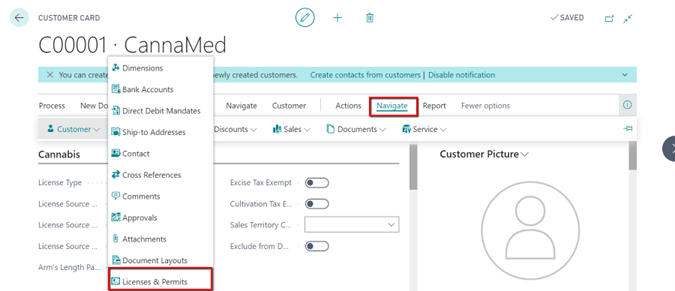
The user can create and assign a license directly from the Customer/Vendor/Shipping Agent/Location/Employee/Driver from the associated Card by clicking on the Licenses and Permits button in the ribbon of the Card.
How To: Change License Info
Click the magnifying glass and in the search box, enter Licenses and Permits and click on the related link.
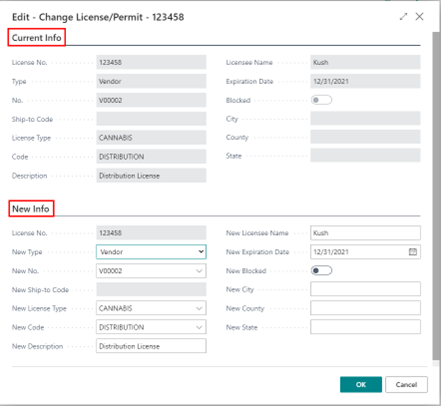
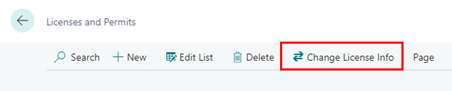
In the ribbon, click on the Change License Info button. This will open the Change License/Permit page.
The Change License/Permit page displays the current License information in the Current Info section. The New Info section is where you will enter the updated License information.